After upgrading an Issuing CA from Windows 2003 to Windows 2008 R2 AD CS there might be a few certificate enrollment problems related to Certificate Templates where Issuance Policies are configured.
The errors reported on the clients / CA’s for any certificate requests were:
AutoEnrolled Certs fail with Error Constructing or Publishing Certificate Invalid Issuance Policies: 1.3.6.1.4.1.311.21.8.6280267.16359443.9783696.11364430.6942907.84.1.400
Active Directory Certificate Services denied request 36 because The certificate has invalid policy. 0x800b0113 (-2146762477). The request was for CN=testuser. Additional information: Error Constructing or Publishing Certificate Invalid Issuance Policies: 1.3.6.1.4.1.311.21.8.6280267.16359443.9783696.11364430.6942907.84.1.400
Lets look at this Test Certificate Template that was requested but failed with the above error:
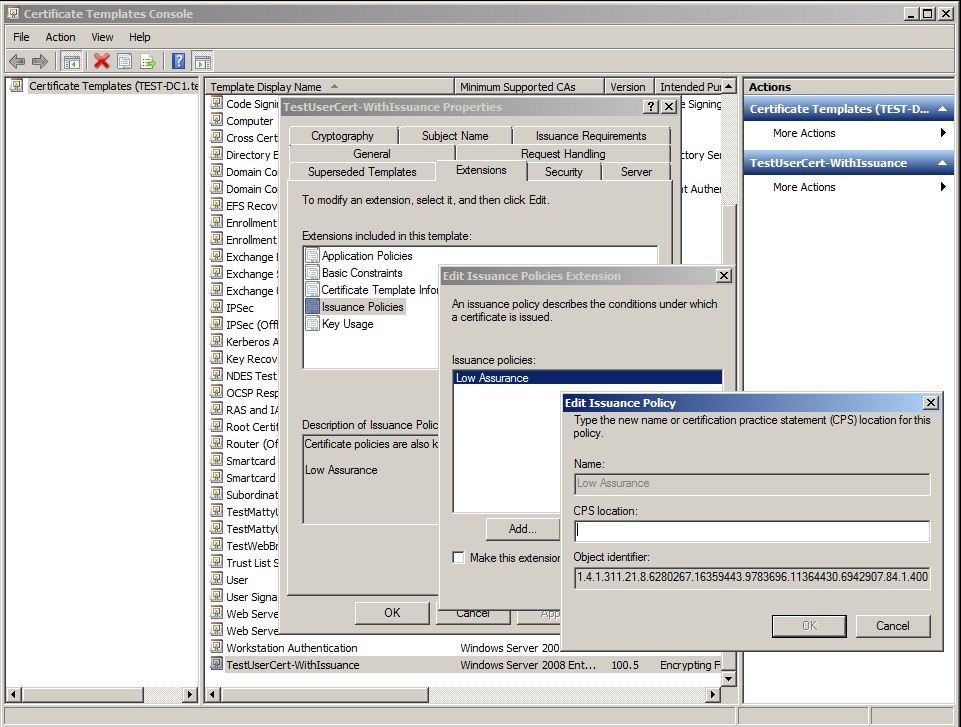
So the Issuance Policy Extension (also known as the Certification Policy) on the Certificate Template ‘TestUserCert-WithIssuance’ has the Low Assurance Issuance Policy associated.
Now lets take a look at the Issuance Policies on this Issuing CA Certificate:
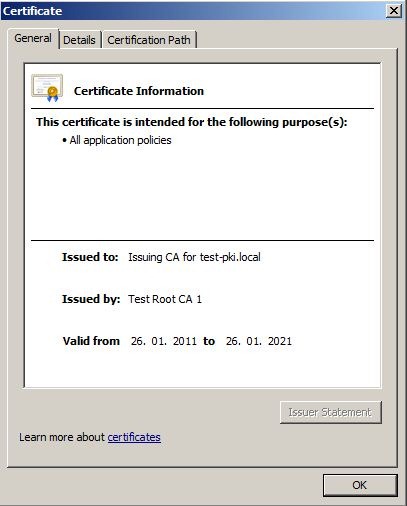
There are no issuance policies set (normally should appear near All application policies).
It was possible on a Windows 2003 CA to issue the same Test Certificate ‘TestUserCert-WithIssuance’ with this same CA certificate without issue.
It seems therefore that Windows 2008 R2 AD CS is a little more sensitive when is comes to asserting Issuance Policies and they must be explicitly defined .
As far as I know, there are three different approaches to resolving this issue. Perhaps there are more (disclaimer over).
1. Changing the CRLFlags registry key to ignore invalid policies
This completely turns off certificate policy processing on the CA, allowing any issuance policy to be asserted for any certificate requests. You may or may not want to implement this depending on your environments security requirements.
This is the easiest resolution since there is no requirement to renew of the CA Certificate.
1: certutil –setreg CA\CRLFlags +CRLF_IGNORE_INVALID_POLICIES
2: net stop certsvc
3: net start certsvc
2. Update the Issuing CA Certificate with ‘All issuance policies’
I don’t see a big difference between this approach and the previous approach. The main difference is probably that issuance policy processing remains enabled on the CA, but any Issuance Policy will allowed.
The main concern here is you will need to renew your CA Certificate(s) to include All issuance policies (see further reading section below for further details).
Locally on your CA, create or update your CAPolicy.inf, adding the AllIssuancePolicy (this is a well-known OID therefore the same across all MS PKI deployments).
[Version]
Signature= “$Windows NT$”
[PolicyStatementExtension]
Policies = AllIssuancePolicy
Critical = FALSE
[AllIssuancePolicy]
OID = 2.5.29.32.0
Once the capoliy.inf file is copied to systemroot (by default c:\windows), you can run through the procedure to renew your CA Certificate (see further reading section below for further details).
3. Update the issuing CA with specific Issuance Policies
I dont see a big difference between this approach and the previous approach. The disavantage here is you need to renew your CA Certificate(s).
Create or Update your CAPolicy.inf to include specfic issuance policies as defined in your certificate templates.
[Version]
Signature= “$Windows NT$”
[PolicyStatementExtension]
Policies = LowAssurancePolicy
CRITICAL = FALSE
[LowAssurancePolicy]
OID = 1.3.6.1.4.1.311.21.8.6280267.16359443.9783696.11364430.6942907.84.1.400
You can add multiple policies, for example, we could issue Medium and Low assurance certificates from this CA with this CAPolicy.inf
[Version]
Signature= “$Windows NT$”
[PolicyStatementExtension]
Policies = LowAssurancePolicy, MediumAssurancePolicy
CRITICAL = FALSE
[LowAssurancePolicy]
OID = 1.3.6.1.4.1.311.21.8.6280267.16359443.9783696.11364430.6942907.84.1.400
[MediumAssurancePolicy]
OID = 1.3.6.1.4.1.311.21.8.6280267.16359443.9783696.11364430.6942907.84.1.500
Note: The OID’s in this case are specific to the test environment. You should use your own OID’s.
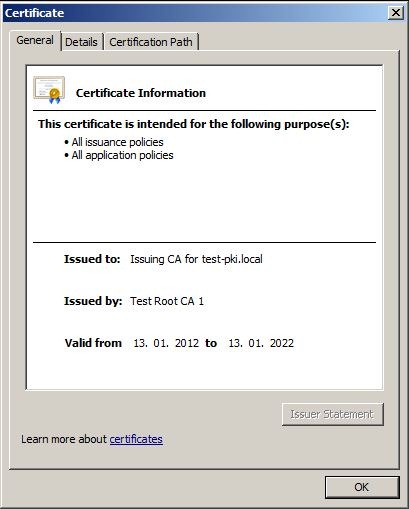
Once the capoliy.inf file is copied to systemroot (by default c:\windows), you can run through the procedure to renew your CA Certificate (see further reading section below for further details). Here is the resulting renewed CA Certificate with the All issuance policies Certificate Policy enabled:
Summary
There are three approaches to resolving this issue, each offering different levels of assurance. Depending on your environment you can decide on the best approach for you.
In my particular case, Option 1 was considered the best approach since renewing the CA Certificate was not really an option.
Further Reading
Upgrading from Windows 2003 to Windows 2008 R2 PKI
http://www.microsoft.com/download/en/details.aspx?displaylang=en&id=17877
Renewing CA Certificate Considerations
http://technet.microsoft.com/en-us/library/cc740209(v=ws.10).aspx
Renewing and Issuing CA Certificate
http://technet.microsoft.com/en-us/library/cc776691(v=ws.10).aspx
 SILK SPUN
Leave a comment