This article contains a a quick walk through of creating a Claims aware application and registering this as a Relying Party in ADFS 2.0.
The ClaimsApp application used within this scenario is the default site created in Visual Studio when selecting File –> New –> Web Site –> ‘Claims-aware ASP.NET Web Site’.
For convenience, this deployment can be made on the same server running ADFS. In a real world scenario the deployment can be on any IIS Server.
Setup ClaimsApp Application in IIS
- Download the ‘ClaimsApp’ Web Site from here. (if you have Visual Studio 2008 or higher installed with the require WIF add-ons then you can choose to also create your own ClaimsApp Web Site (File –> New –> Web Site –> ‘Claims-aware ASP.NET Web Site’)
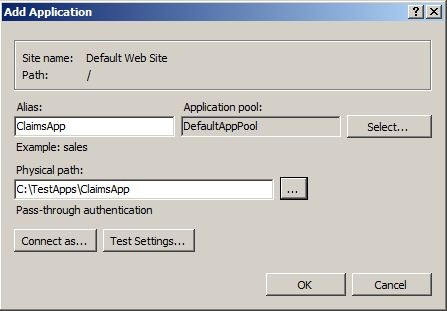
- Copy the ‘ClaimsApp’ Web Site to a directory on an IIS (in this case ADFS) Server. For example, copy the contents to path C:\TestApps\ClaimsApp
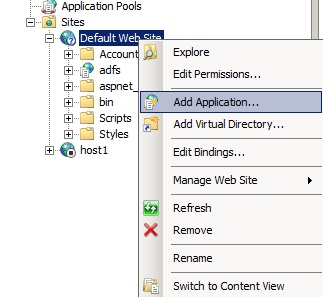
- Configure a new Application in IIS under the Default Web Site node


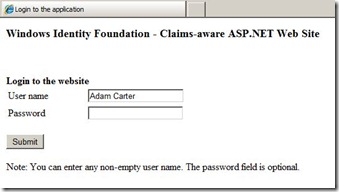
- Test the Application by opening the Site in a browser, for example, on an ADFS Server, both http: and https: bindings should work:
http://your-adfs-server/claimsapp
https://your-adfs-server/claimsappNote: depending on the Target Framework installed on the ADFS Server, the compilation of the site may fail. This can be resolved by removing the targetFramework attribute from the web.config
<compilation debug="true" targetFramework="4.0">
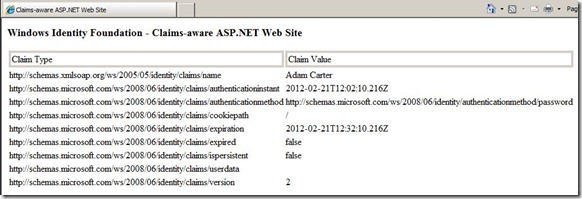
- The application should load and the following screens should appear
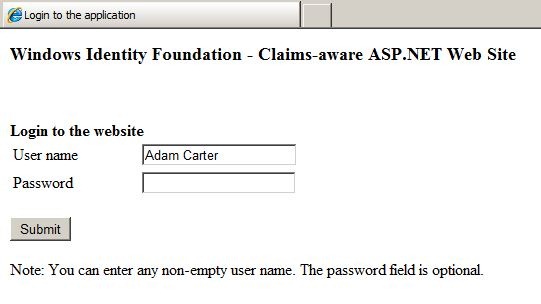
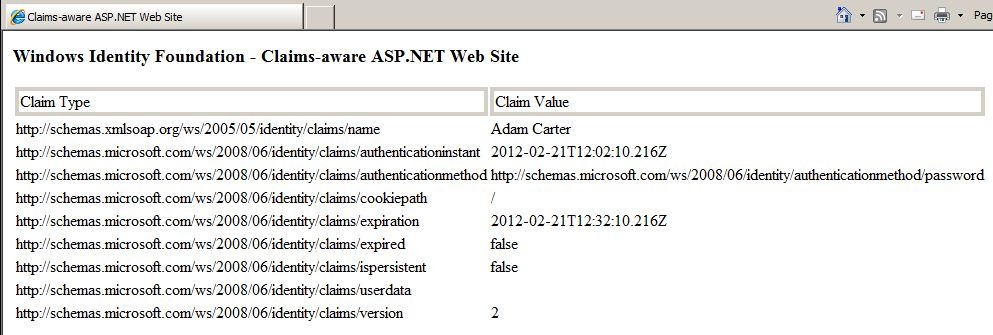
Application Configuration
Configure the application to request SAML tokens from the ADFS server.
- Download and install the Windows Identity Foundation SDK (select the framework version you have installed – I chose 3.5)
- Once the installation is complete, run FedUtil.exe (by default this is located in C:\Program Files (x86)\Windows Identity Foundation SDK\v3.5 (or v4.0 respectively)
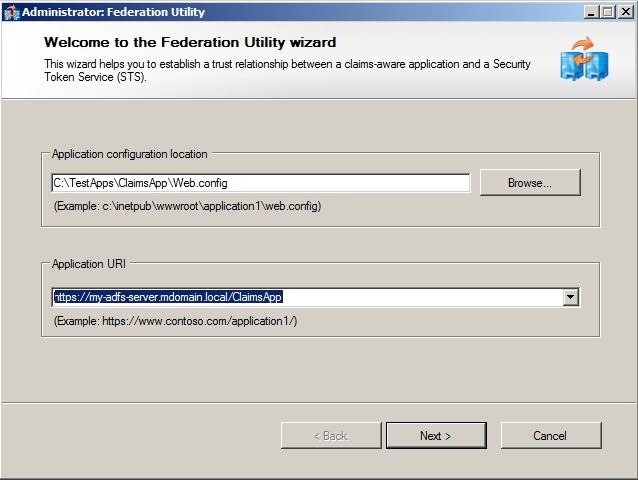
- Open the Web.Config from the ClaimsApp application that was configured in IIS. Specify the Application URI (this will be used as the Identifier later in the process when configuring ADFS).

- Specify an STS (Security Token Service). Since ADFS is an STS, we can specify this here.

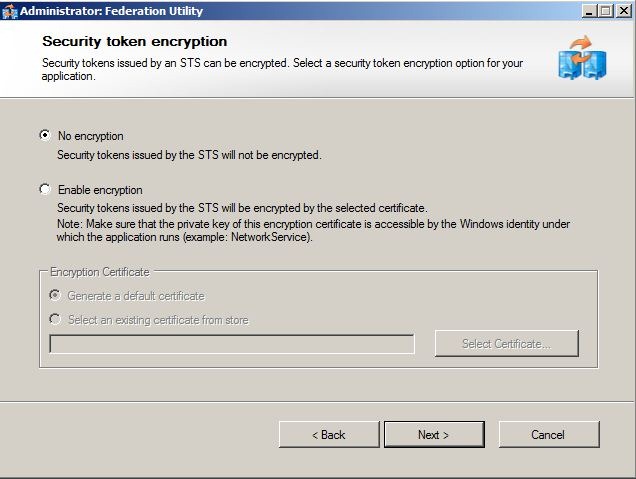
- When prompted for Encryption, specify none for now.
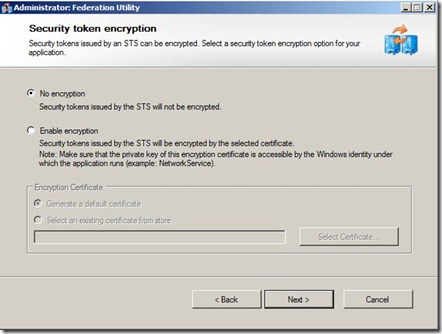
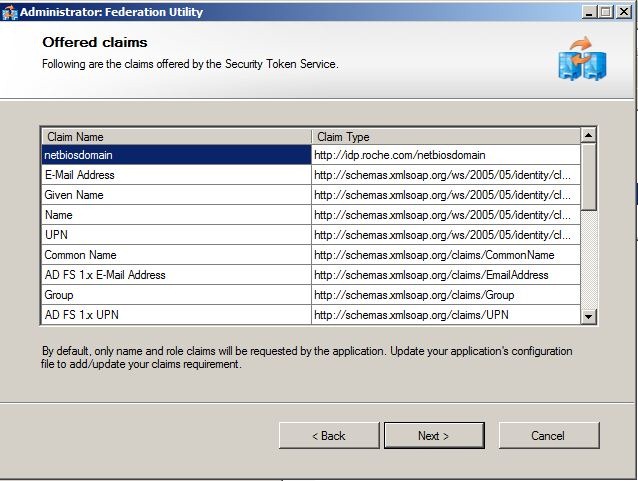
- Set the Offered claims. Leave as default. This can be changed in the Web.Config later
if so desired.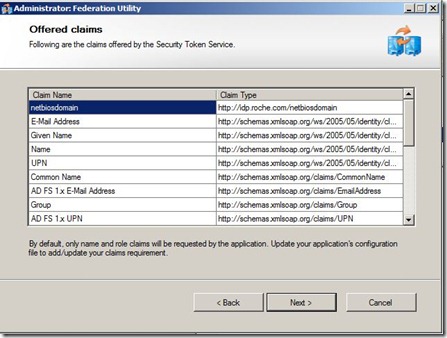
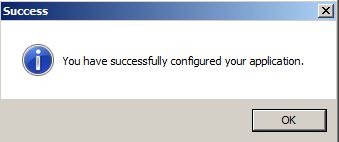
- When prompted to schedule updates to Federation Metadata, leave the check box deselected and click Finish. The following message will appear at the end.

- Now try to access the application again over https https://your-adfs-server.mydomain.local/claimsapp. This time you will see a redirect of the browser to the ADFS Server with a Url similar to this:
The process will fail since ADFS still needs to be configured with this Relying Party which is covered in the next section.
The AD FS 2.0 event log will contain two errors Event ID 184 and 364 indicating this:
A token request was received for a relying party identified by the key ‘https://your-adfs-server.mydomain.local/ClaimsApp’, but the request could not be fulfilled because the key does not identify any known relying party trust.
Key: https://your-adfs-server.mydomain.local/ClaimsAppThis request failed.
User Action
If this key represents a URI for which a token should be issued, verify that its prefix matches the relying party trust that is configured in the AD FS configuration database.

ADFS Relying Party Configuration
Now the configuration is complete on the application side, we can add the Relying Party trust for the ClaimsApp.
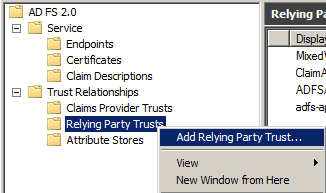
- Open the AD FS 2.0 Management Console
- Right-click Relying Party Trusts and click on Add Relying Party Trust..,
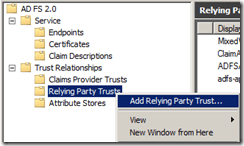
- Select Import data about the relying party from a file

Browse to the ClaimApp\FederationMetaData directory as shown.
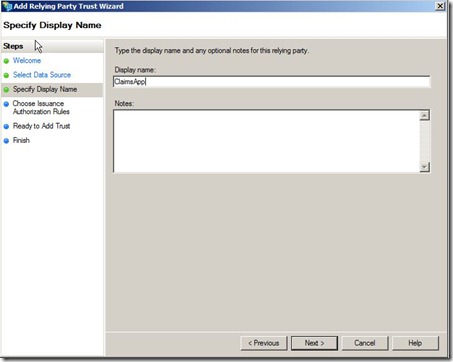
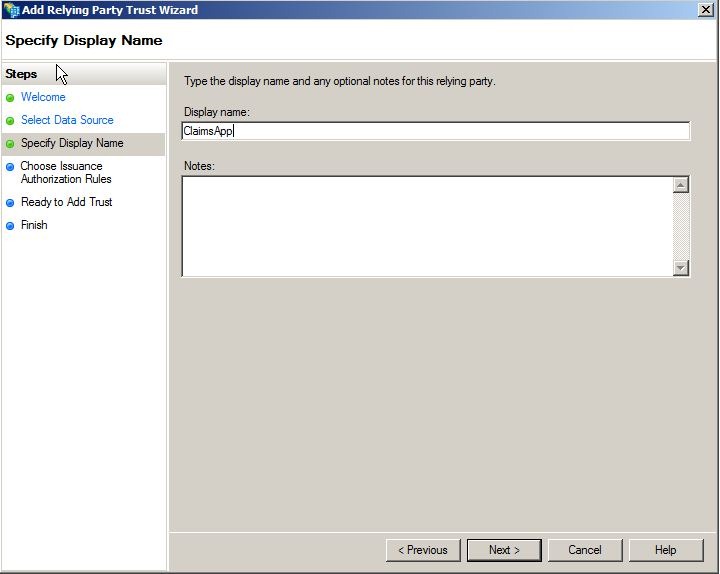
- Specify a Display Name called ClaimsApp (this is only used internally in ADFS).
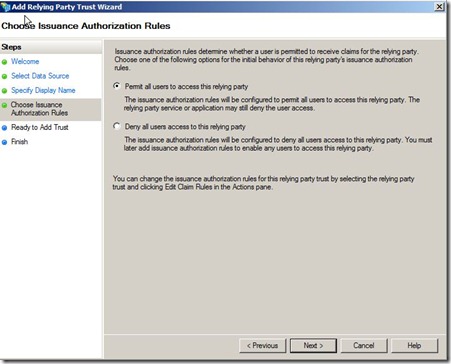
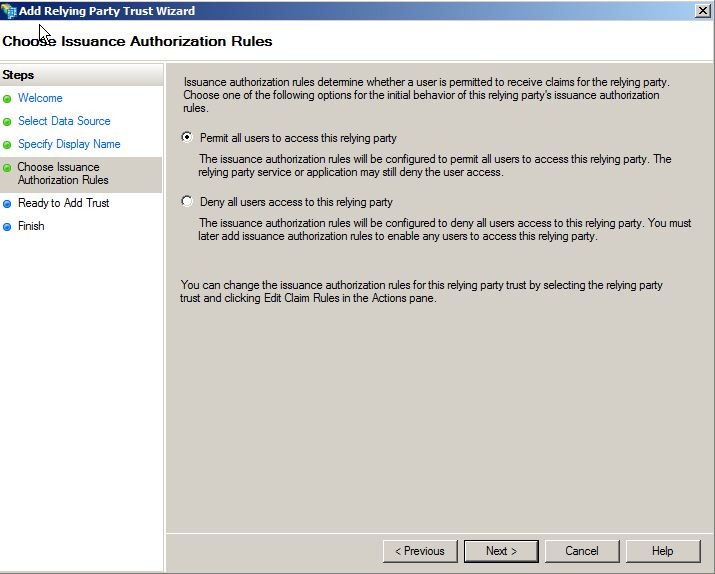
- Permit all users access to the relying party
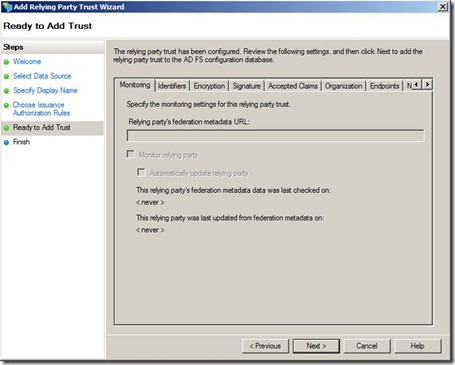
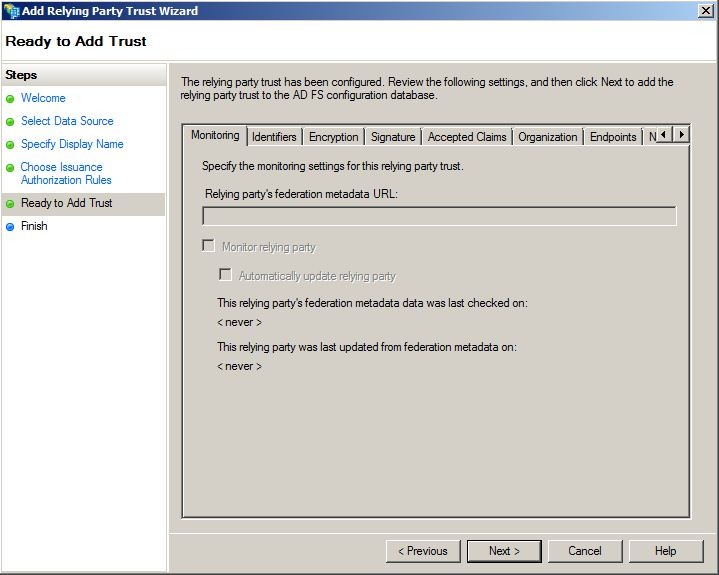
- Click Next on the Ready to Add Trust screen.
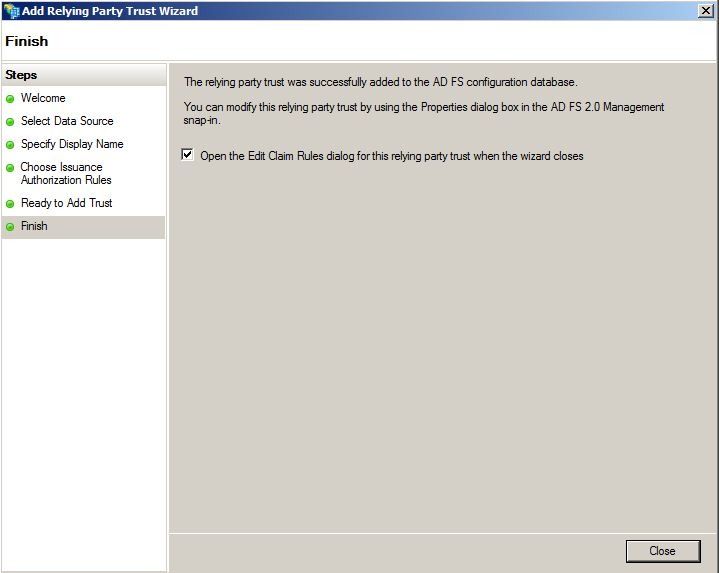
- Leave the checkbox enabled ‘Open the Edit Claims Rules for this relying party trust when the wizard closes’
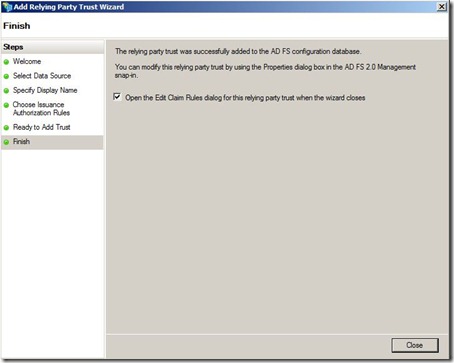
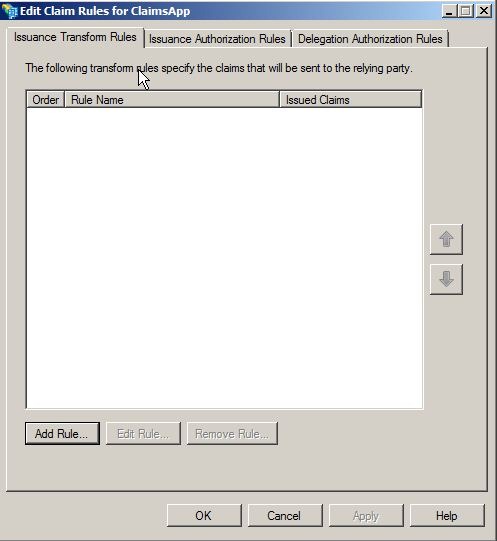
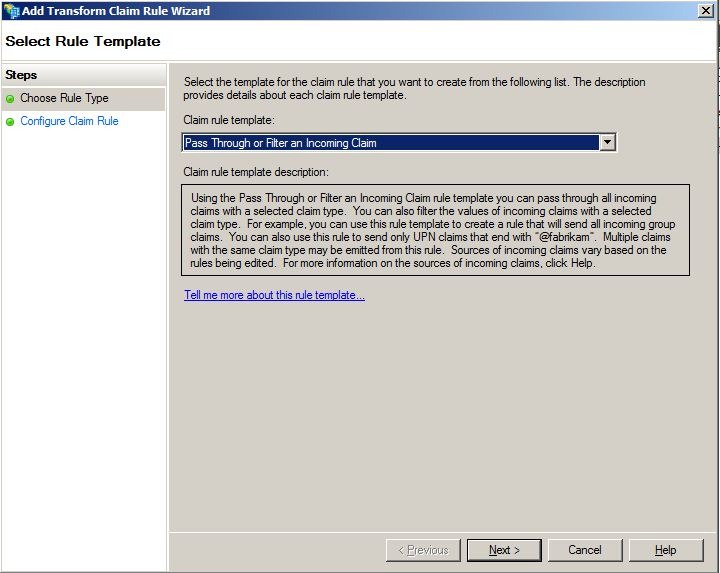
- Click Add Rule
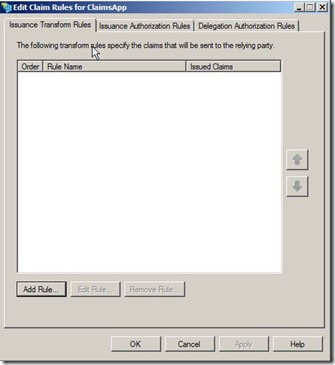
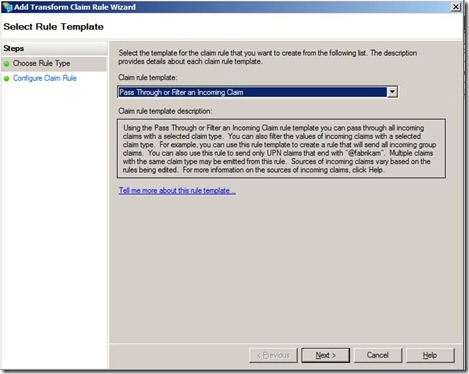
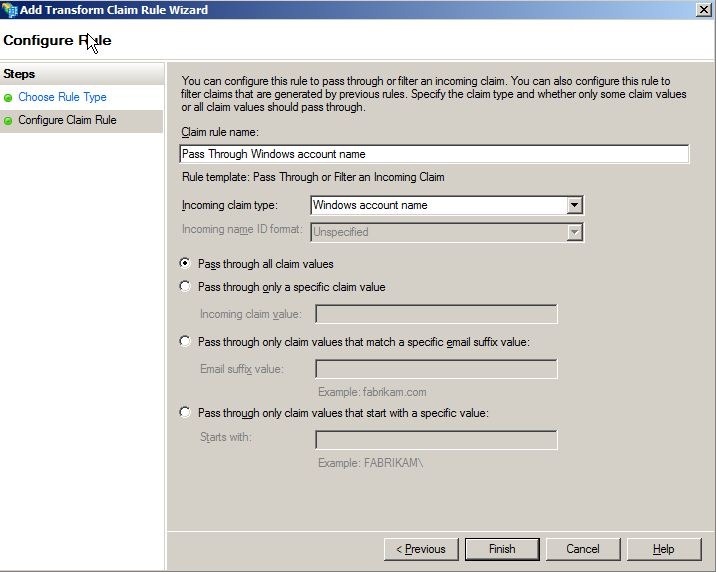
- Specify a Pass through Claim for the Windows account name.
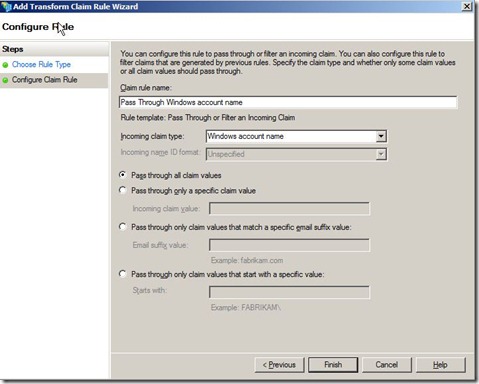
- Configure to Pass through the Windows account name claim type. (This claim is already added to the Claims Pipeline as part of the Acceptance Claims on the Active Directory Claims Trust Provider).
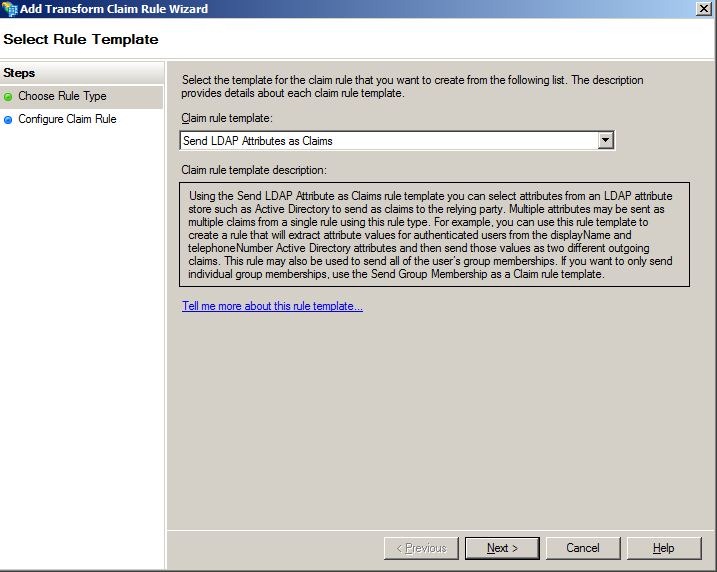
- Configure to send some LDAP Attributes as Claims
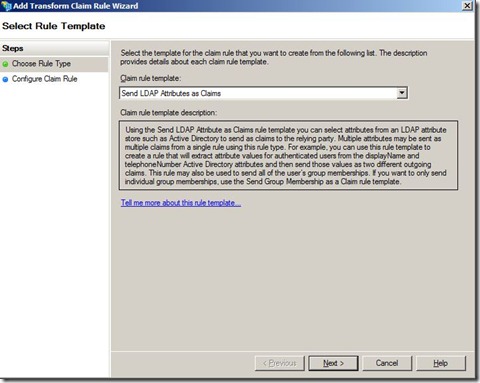
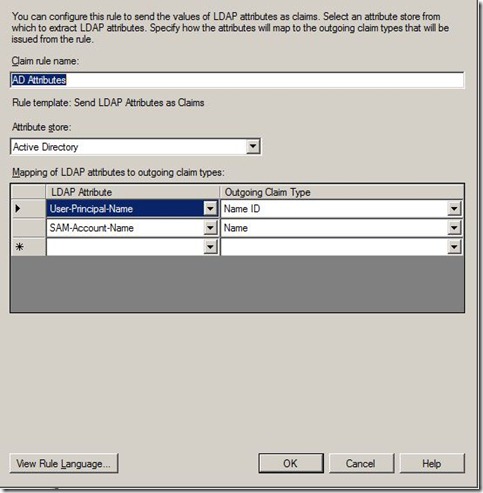
Click OK a couple of times, and we are done configuring the ClaimsApp Relying Party.


Testing
Try to access the application again over https https://your-adfs-server.mydomain.local/claimsapp. You will briefly see a redirect to the ADFS Server, followed by a page displaying the current claims that were previously configured on the Relying Party:

Now we have a simple claims test application that utilizes WIF / ADFS which can be used to test a few different scenarios.


 SILK SPUN
Leave a reply to Ryan Cancel reply