In Part 1 of this series we covered an overview of Data Encryption using Symmetric and Asymmetric algorithms and how, when combined, perform a very secure and efficient method for Data Encryption. This article follows on to demonstrate the practical implementation of the concept using a simple C# .NET Console Application.
Background
The requirement for this class came from a recent project, and I would of course appreciate any feedback you might have. The requirement was to simply Encrypt data within the business tier of an n-Tier application prior to persisting to a database.
High on the list of requirements was a clear role separation between Encryption and Decryption operations and a secure way to manage the encryption keys. Encryption operations would be performed highly frequently upon data entry, where as Decryption would be rarely performed (on an as needed basis) and controlled to a small team using a 4-eyes principal.
The sample application is merely that – just a sample. It is not considered ‘production ready’. Its perhaps considered a good starting point for you to use in applications that require Encryption.
The Sample Project
In this article, I will not cover all the code within the project itself, but simply demonstrate how to build and run the sample Console Application.
- Download the Console Application Project.
- Extract the ZIP file somewhere on your local machine.
- Open the solution in Visual Studio 2010.
- Open the Program.cs file.
- There are three constants at the top of the Program class that determine where the Encryption certificate should be located.You can either alter these as required, if you already have an Encryption Certificate available on your computer, or you can leave them ‘as is’ and install the self-signed sample certificate included with the project.
const string RSACERT_SUBJECT = "CN=localhost";
const StoreName RSACERT_STORENAME = StoreName.My;
const StoreLocation RSACERT_STORELOCATION = StoreLocation.CurrentUser;
- To install the self-signed certificate from the project distribution, open the the SSLCertfolder (included in the project) in Explorer .
- There are three files, localhost.pfx (contains the public and private key), localhost.cer (contains the public key only) and readme.txtwhich contains the password required to open the PFX file.
- Double-click on the localhost.pfx, select Next, then Next again. Enter the password (from the readme.txt) when prompted and select the option ‘Mark this key as exportable’ (if you would like to export the private key to another machine in the future).
- Click Next again, followed by ‘Automatically select the certificate store based on the type of certificate’ (this will install the certificate to the Personal (MY) Store of the Current Logged on User.
- Open certmgr.msc
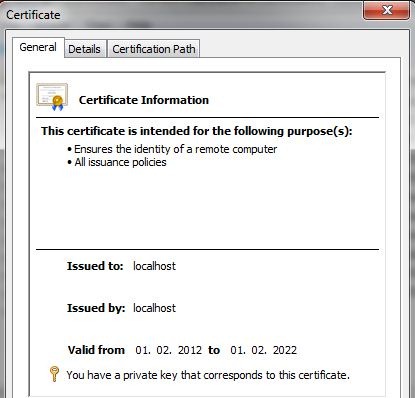
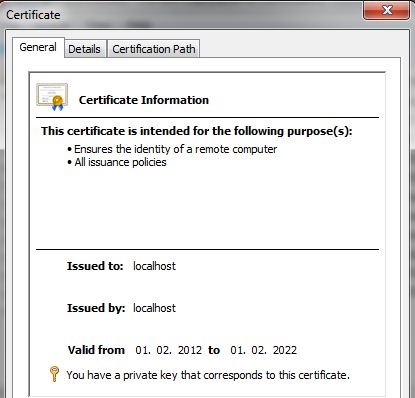
- Open Certificates – Current User / Personal / Certificates and double-click the localhost certificate. Notice ‘You have the private key that corresponds to this certificate’. The Private Key is required to perform Decryption operations.

Running the Sample Project
The sample project is an console application. It has some basic features for testing the EncryptionHelper class.
- If not already done so, open the solution in Visual Studio 2010 and Build the project.
- Hit F5 to run the project, the Console Application will load:
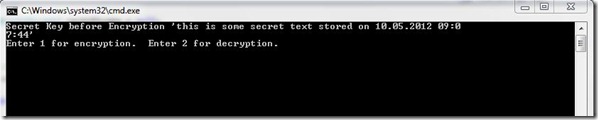
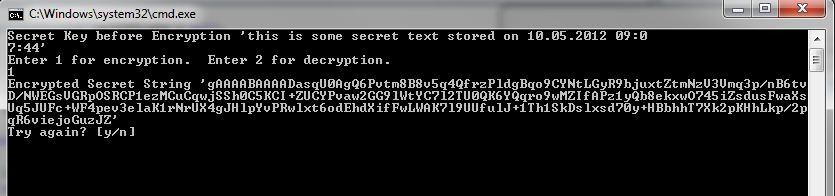
- You can see the ‘secret text’ at the top of the screen to be encrypted a long with the current time stamp. Enter ‘1’ to perform an Encryption operation. The Base64 encrypted payload is displayed on the screen as shown:
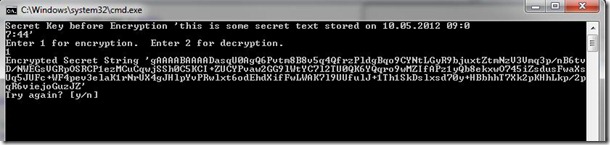
- That’s it! The data is encrypted using the Public Key of the Digital Certificate. The encrypted payload is also stored to bin\Debug\EncryptedData with a filename of the timestamp when the data was encrypted. Depending on the use case, this would be stored to a database field etc.
- To Decrypt this same data again, this time using the Private Key, Press ‘Y’ to try again to return to the initial screen.
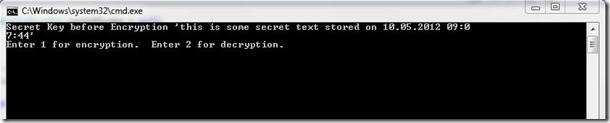
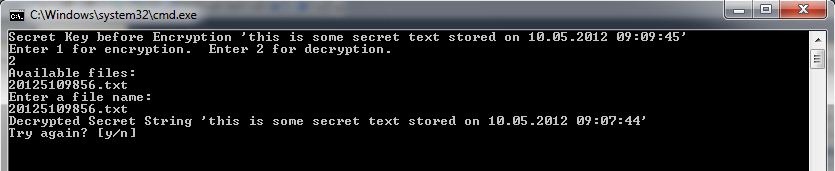
- This time select ‘2’ for Decryption

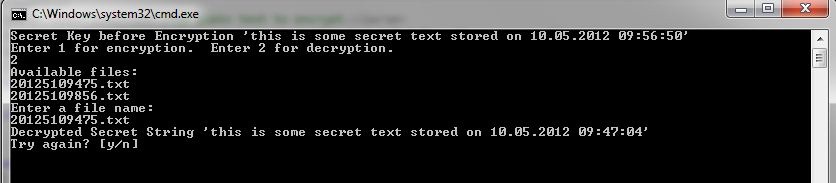
- Enter the filename from the available files list, in this case there is only one, 20125109856.txt and press Enter.
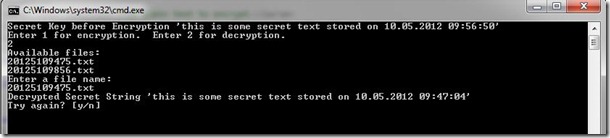
 And Success! The data is decrypted once again to its original form.



Now lets test Decryption and Encryption operations are isolated to the specific Private and Public Keys respectively. Its possible to do this by deleting the Private Key from the certificate store, and installing only the Public Key part. At this point it should only be possible to Encrypt. Decryption should fail.
- Open certmgr.msc
- Open Certificates – Current User / Personal / Certificates, locate the localhost certificate and click delete.
- Open the the SSLCertfolder (included in the project) in Explorer.
- Double-click on localhost.cer (which contains the Public Key only).
- Click ‘Install Certificate….’
- Click Next again, followed by ‘Automatically select the certificate store based on the type of certificate’ (this will install the certificate to the Personal (MY) Store of the Current Logged on User.
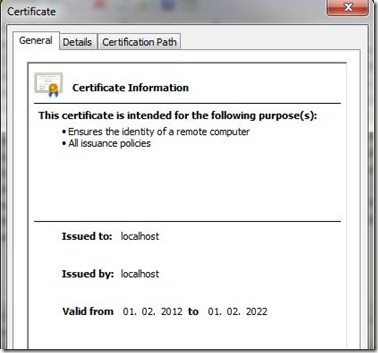
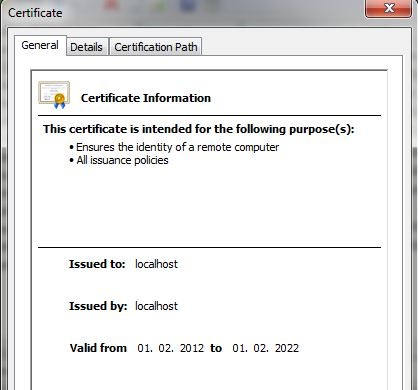
- Open Certificates – Current User / Personal / Certificates (you might need to refresh this window if it was already open – press F5), locate the localhost certificate and double-click. The certificate is now displayed, but notice this time, there is no message displayed indicating ‘You have the private key that corresponds to this certificate’.
- Back in Visual Studio, Hit F5 to run the project, the Console Application will load:
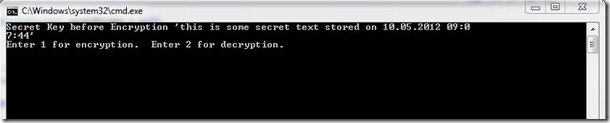
- Select Option 1 for Encryption. Encryption should work as expected.

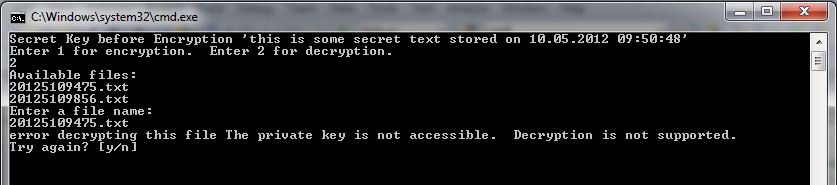
- Select ‘y’ to ‘Try again’, this time select 2 for Decryption
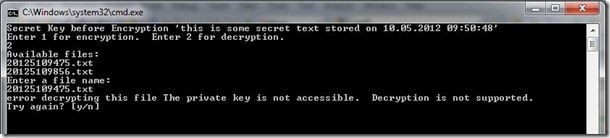 This time we have a message! Decryption is not supported! This is exactly what we wanted.
 - Let’s restore the Private Key once again, by opening certmgr.msc and deleting the localhostcertificate in the Personal Store.
- Open the SSLCert Folder and double-click on the localhost.pfx, select Next, then Next again. Enter the password (from the readme.txt) when prompted and select the option ‘Mark this key as exportable’ (if you would like to export the private key to another machine in the future).
- Click Next again, followed by ‘Automatically select the certificate store based on the type of certificate’ (this will install the certificate to the Personal (MY) Store of the Current Logged on User.
- Open Certificates – Current User / Personal / Certificates and double-click the localhost certificate. Notice ‘You have the private key that corresponds to this certificate’ should be displayed. The Private Key is required to perform Decryption operations.
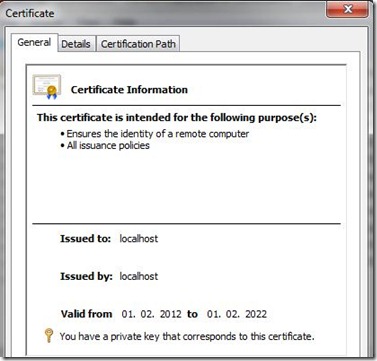
- Back in the Console Application window, select ‘y’ to ‘Try again’,
- Select 2 for Decryption. This time the operation will work as expected.


Summary
- To wrap up, this article demonstrated separation of Encryption and Decryption methods using a sample .NET application. This program uses a mix of Asymmetric and Symmetric Encryption to perform operations, thus separating Decryption and Encryption operations to the respective Private and Public Keys.
- In Part 3 we will dive a little deeper into the sample .NET code.
Related Articles
Part 3
 SILK SPUN
Leave a reply to Performing RSA (Asymmetric) Data Encryption and Decryption in C# (Part 1) « SilkSpun Cancel reply